> ## Documentation Index
> Fetch the complete documentation index at: https://docs.freshlimepay.com/llms.txt
> Use this file to discover all available pages before exploring further.
# Integrate StripeConnect
> Extend your Stripe integration to Stripe Connect for marketplaces and platform payouts.
This guide walks you step by step through setting up **Stripe Connect** in your Stripe business account.
> **Prerequisite:** Complete the standard [Integrate Stripe](/guides/connect-stripe/integrate-stripe) guide first.
***
## 1. Complete Standard Stripe Integration
Before setting up Stripe Connect, ensure your Stripe business account is fully integrated with FreshLimePay Cloud:
* You have created a Stripe account.
* You have generated **Publishable Key** and **Secret Key**.
* You have connected your Stripe credentials in FreshLimePay Cloud.
If you haven't done this yet, follow the [Integrate Stripe guide](/guides/connect-stripe/integrate-stripe) first.
***
## 2. What is Stripe Connect?
Stripe Connect is **Stripe’s solution for marketplaces and platforms**. It was created because:
* Platforms often need to **accept money from customers and pay multiple sellers**.
* Manually managing payouts, tax compliance, and account verification is complex.
* Stripe Connect automates **KYC, payouts, fees, and compliance**, making marketplace payments easier and safer.
In short:
* Without Stripe Connect → only your business account can receive payments.
* With Stripe Connect → your platform can onboard multiple sellers and manage payouts automatically.
***
## 3. Set Up Stripe Connect
Stripe Connect allows platforms and marketplaces to **onboard other sellers** and **collect fees automatically**.
### Steps:
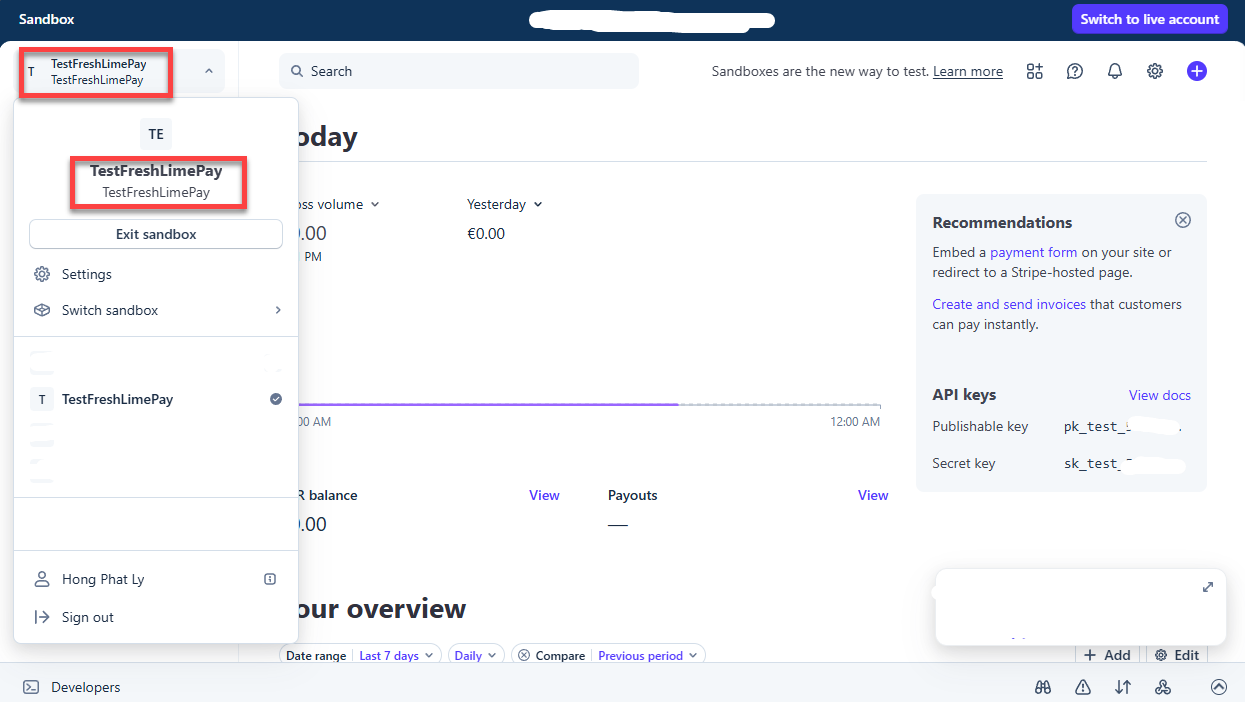
1. Go to your Stripe dashboard.
2. Choose one Stripe account.
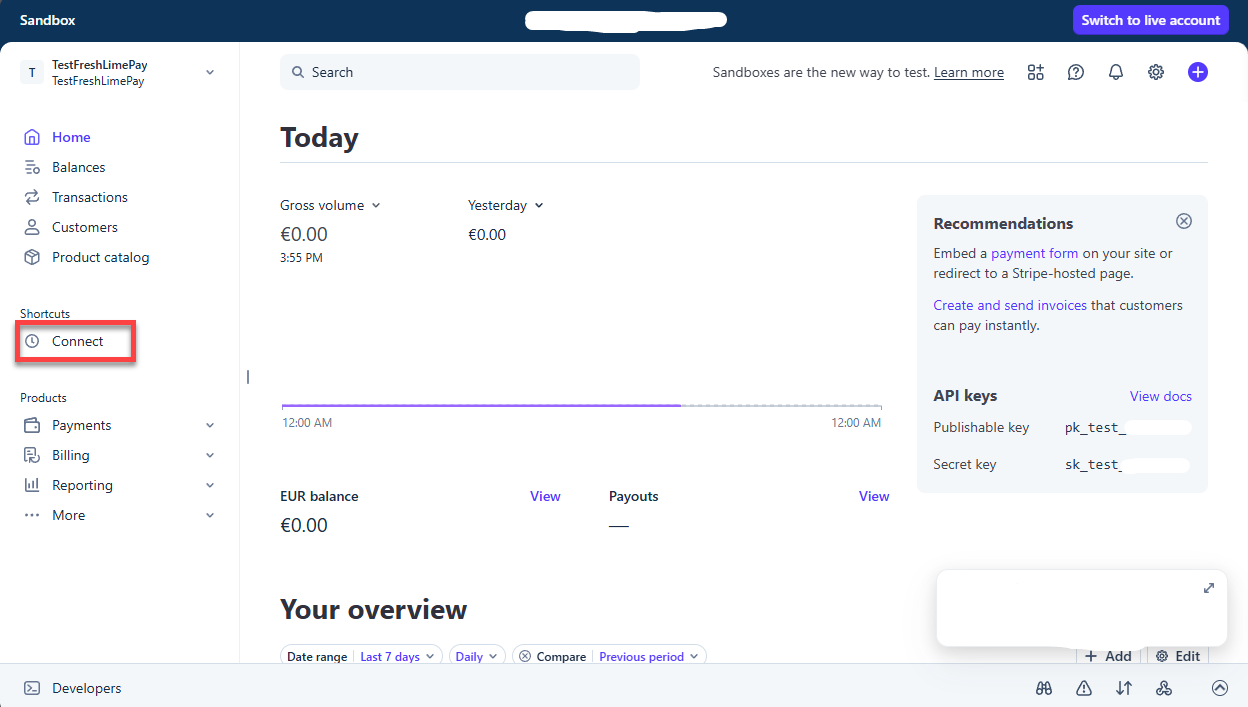
3. Navigate to **Connect**.
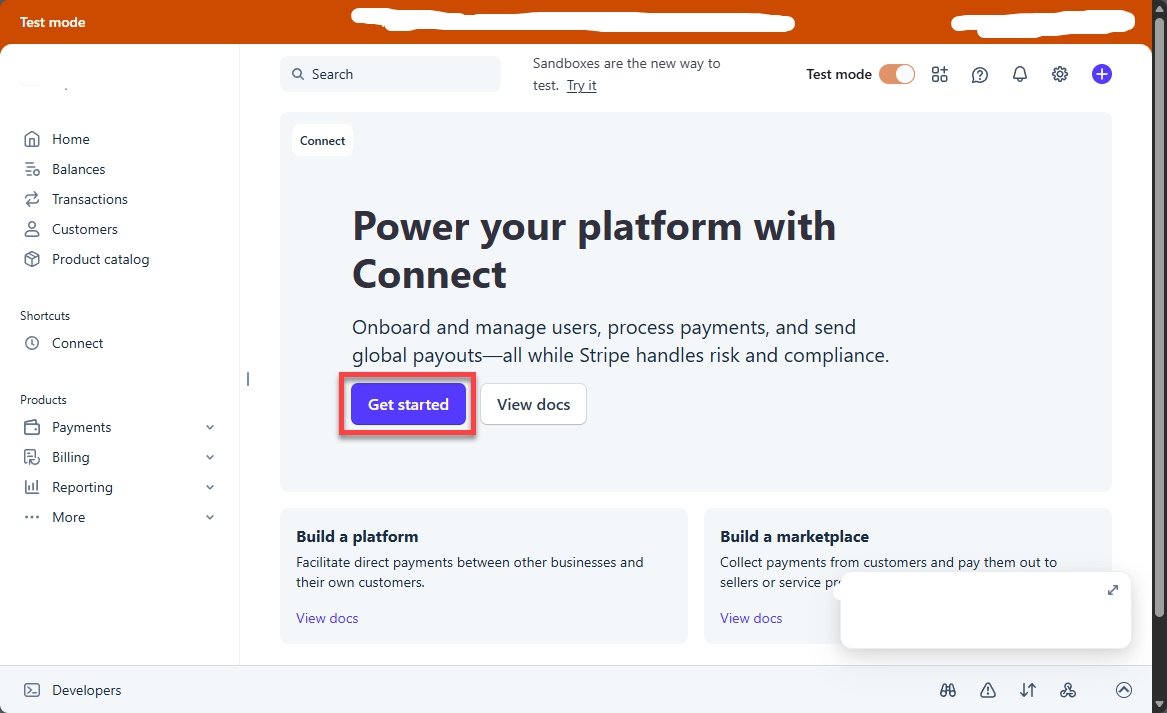
4. Click on **Get Started**.
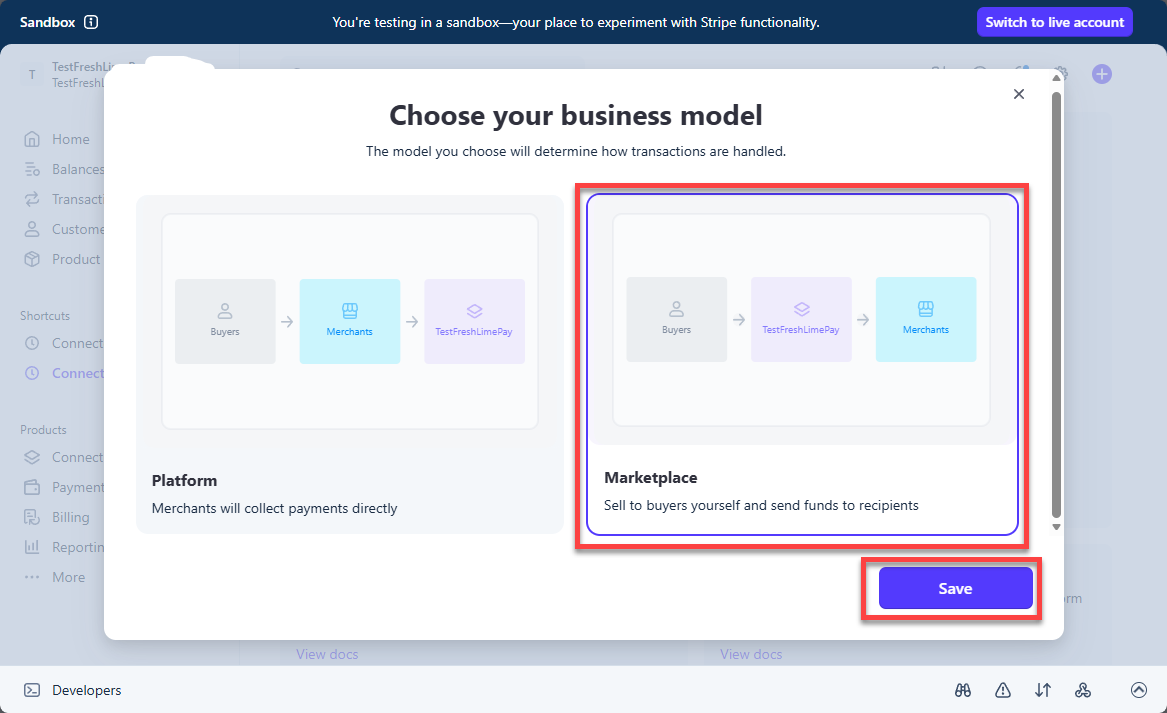
5. Choose your business model.
6. Completed.
Stripe Connect is required for marketplaces or platforms where you want to **route payments to other sellers** and optionally collect fees automatically.
***
## 5. What's Next?
Learn how to create checkout one-time buttons that pay connected accounts and include application fees automatically.
Learn how to create checkout recurring buttons that pay connected accounts and include application fees automatically.