> ## Documentation Index
> Fetch the complete documentation index at: https://docs.freshlimepay.com/llms.txt
> Use this file to discover all available pages before exploring further.
# Quickstart
> This guide helps you accept your first PayPal or Stripe payment with FreshLimePay in under 10 minutes. Choose your setup below.
## ⚡ FreshLimePay Cloud (Recommended)
### Step 1: Sign up
Go to FreshLimePay Cloud website `here`or visit this link: [FreshLimePay Cloud — Fast PayPal & Stripe Integration for SaaS, Creators & Small Businesses](https://cloud.freshlimepay.com/)
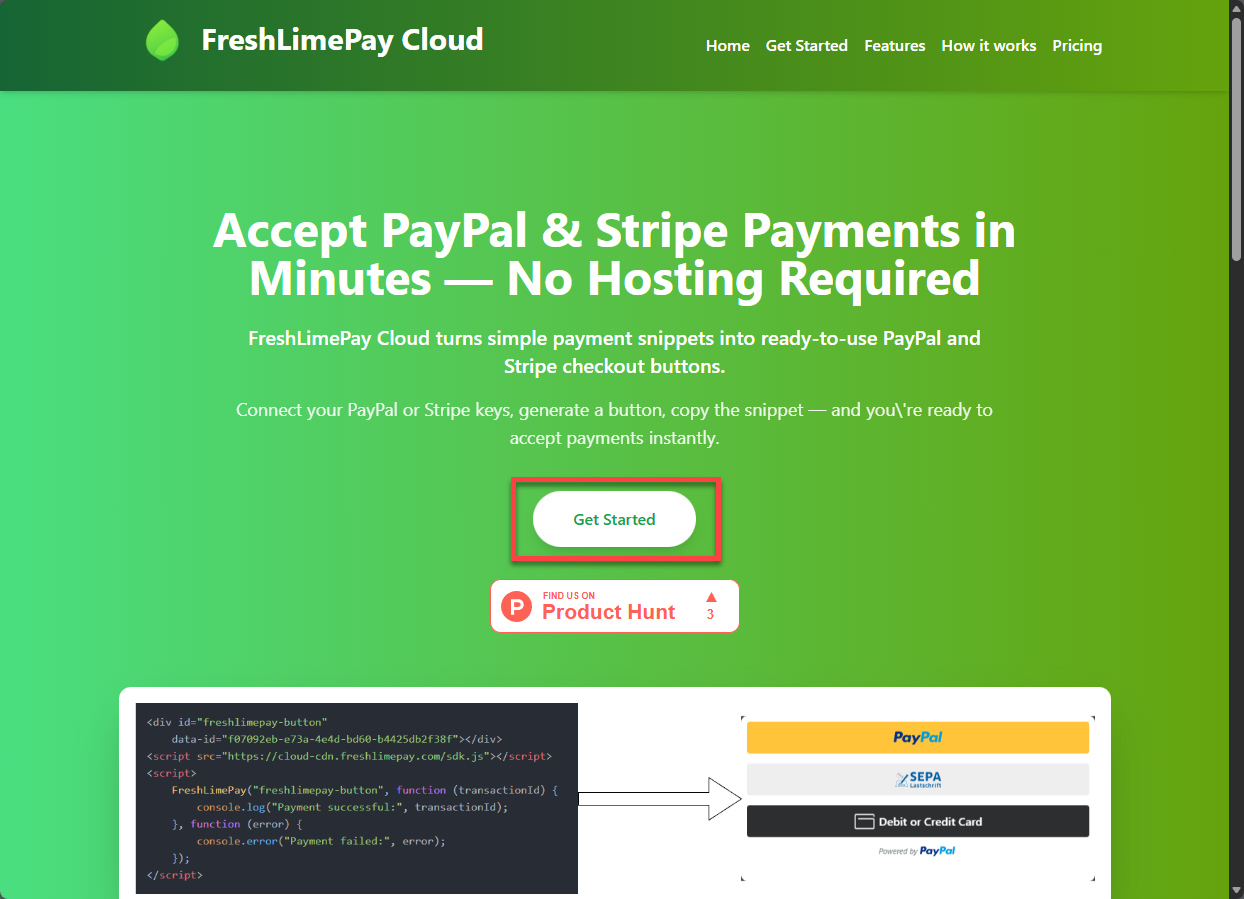
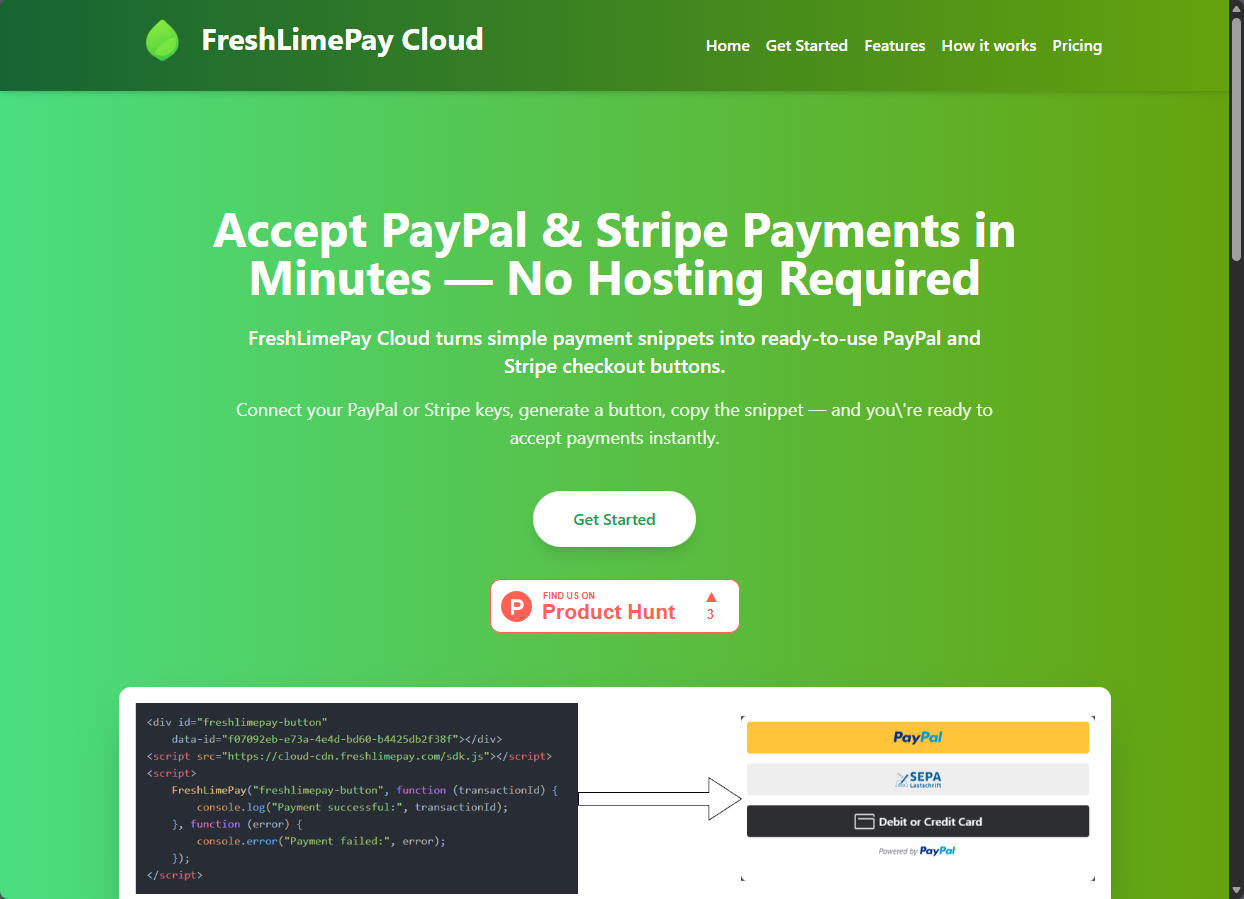 1. Click "Get Started" button.
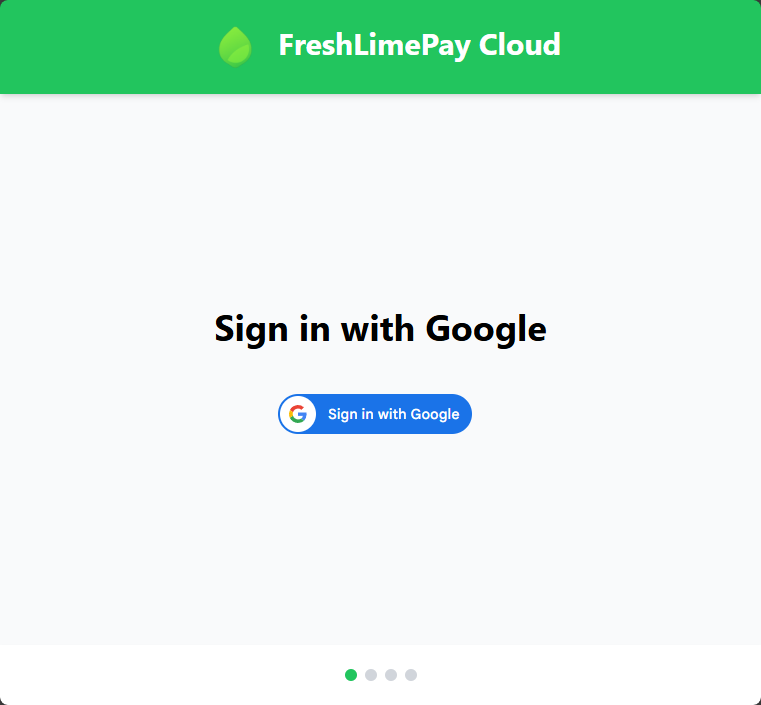
 2. You will see "Sign up" page with Sign in with Google button like this
 3. Click on the "Sign in with Google" button
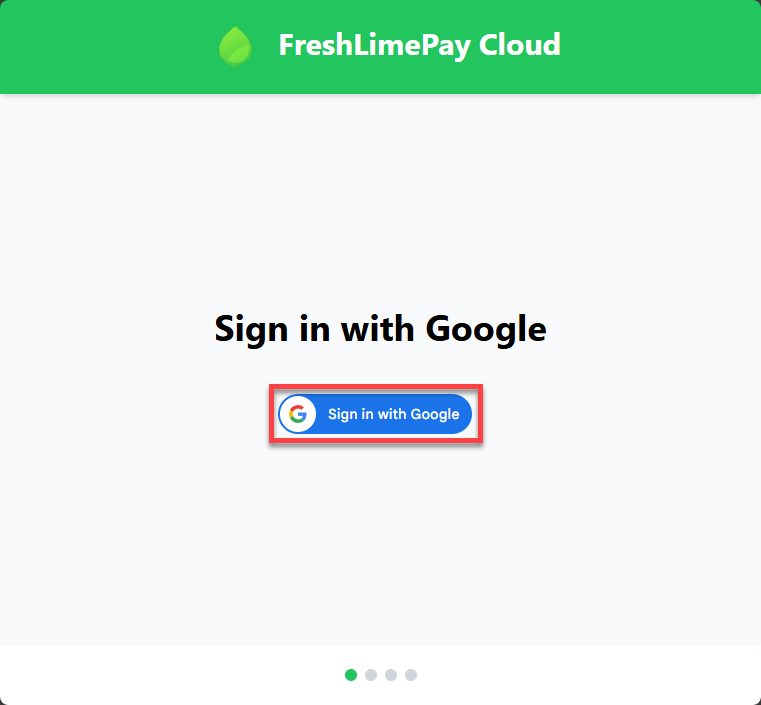 4. Follow the instructions to sign in with your Google account.
5. Completed.
### Step 2: Connect PayPal or Stripe
After login completed, you will see the home page like this:
4. Follow the instructions to sign in with your Google account.
5. Completed.
### Step 2: Connect PayPal or Stripe
After login completed, you will see the home page like this:
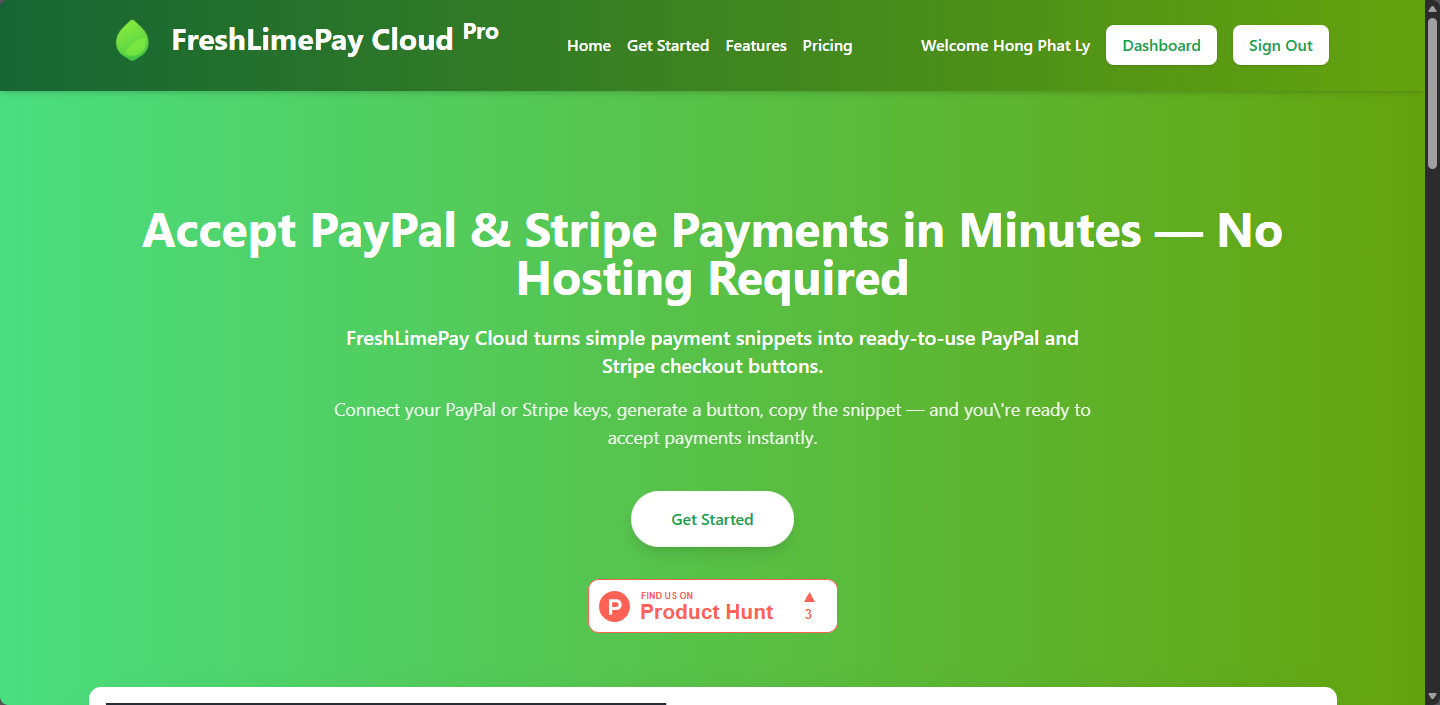 Next, you click on "Dashboard" button:
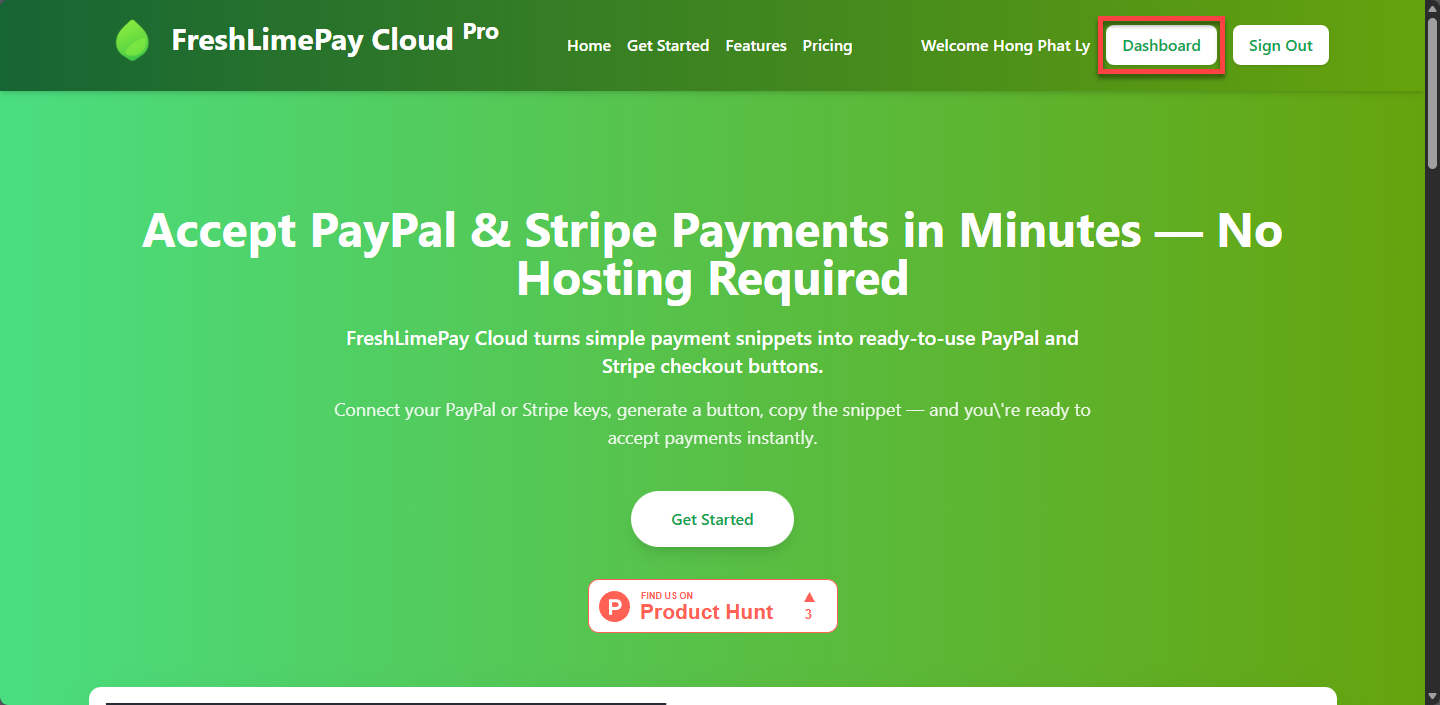 Next, the Dashboard page will be shown and you click on the "Update Settings" link:
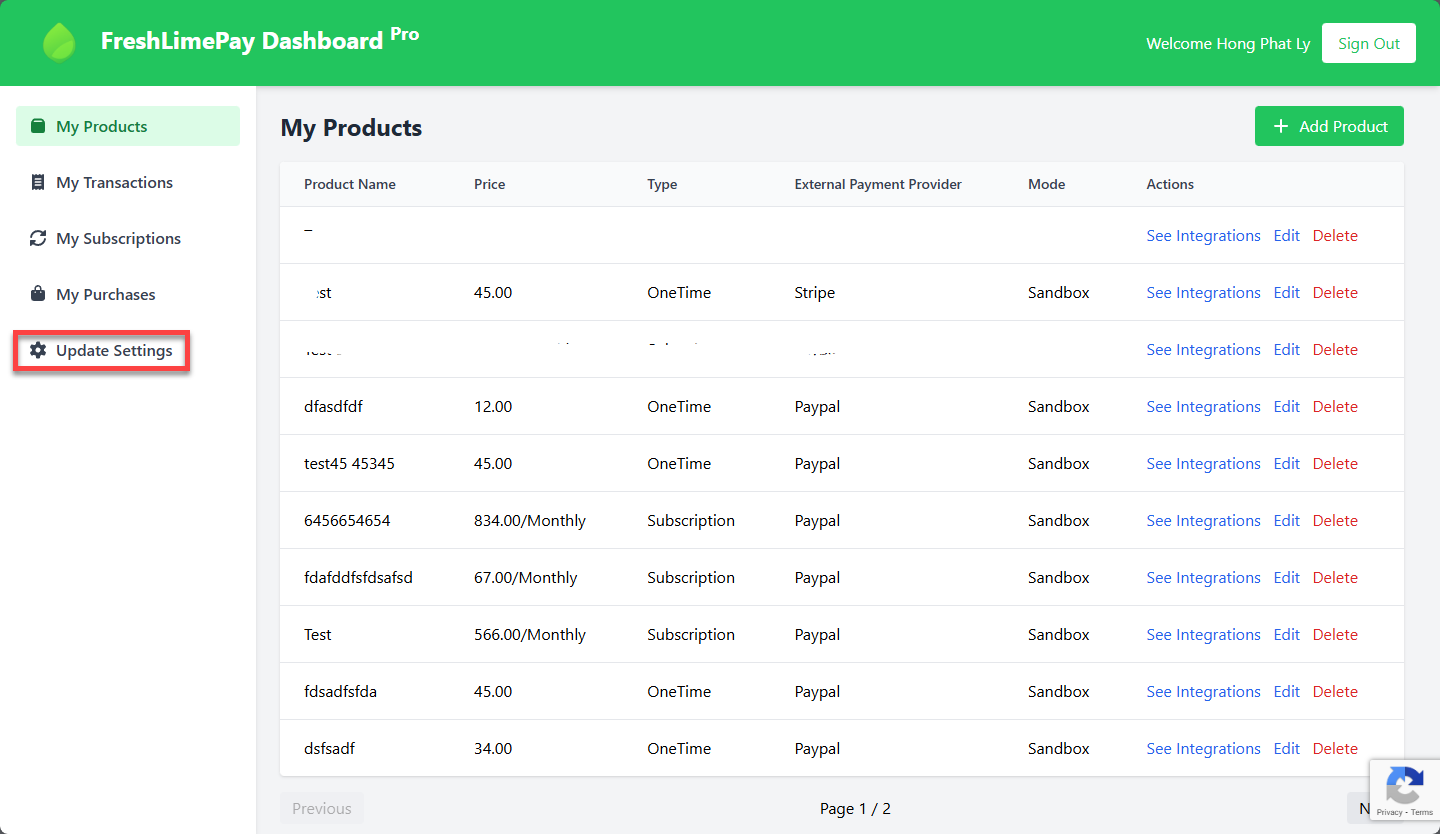 Next, you will see the Update Settings page:
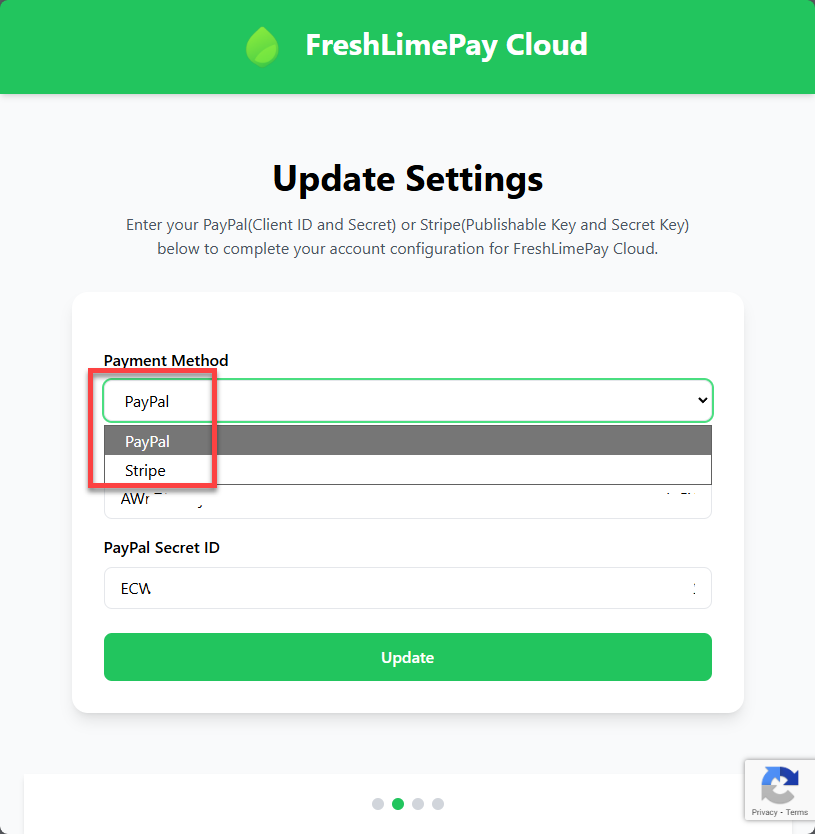 In the screenshot, you will see two payment methods: PayPal and Stripe. Finally, you choose one method to update settings.
You choose PayPal and update PayPal Client ID and PayPal Secret ID and press Update.
In the screenshot, you will see two payment methods: PayPal and Stripe. Finally, you choose one method to update settings.
You choose PayPal and update PayPal Client ID and PayPal Secret ID and press Update.
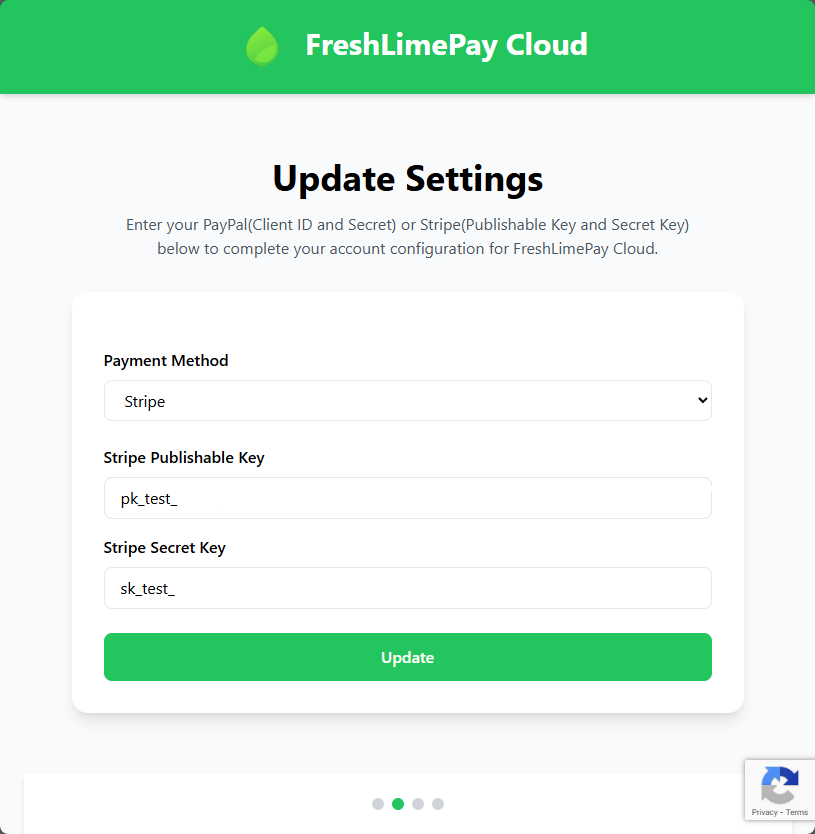 You choose Stripe and update **Stripe Publishable Key** and **Stripe Secret Key** and press Update.
### Step 3: Create Payment button
1. Go the Dashboard page and click on "Add Product" button:
You choose Stripe and update **Stripe Publishable Key** and **Stripe Secret Key** and press Update.
### Step 3: Create Payment button
1. Go the Dashboard page and click on "Add Product" button:
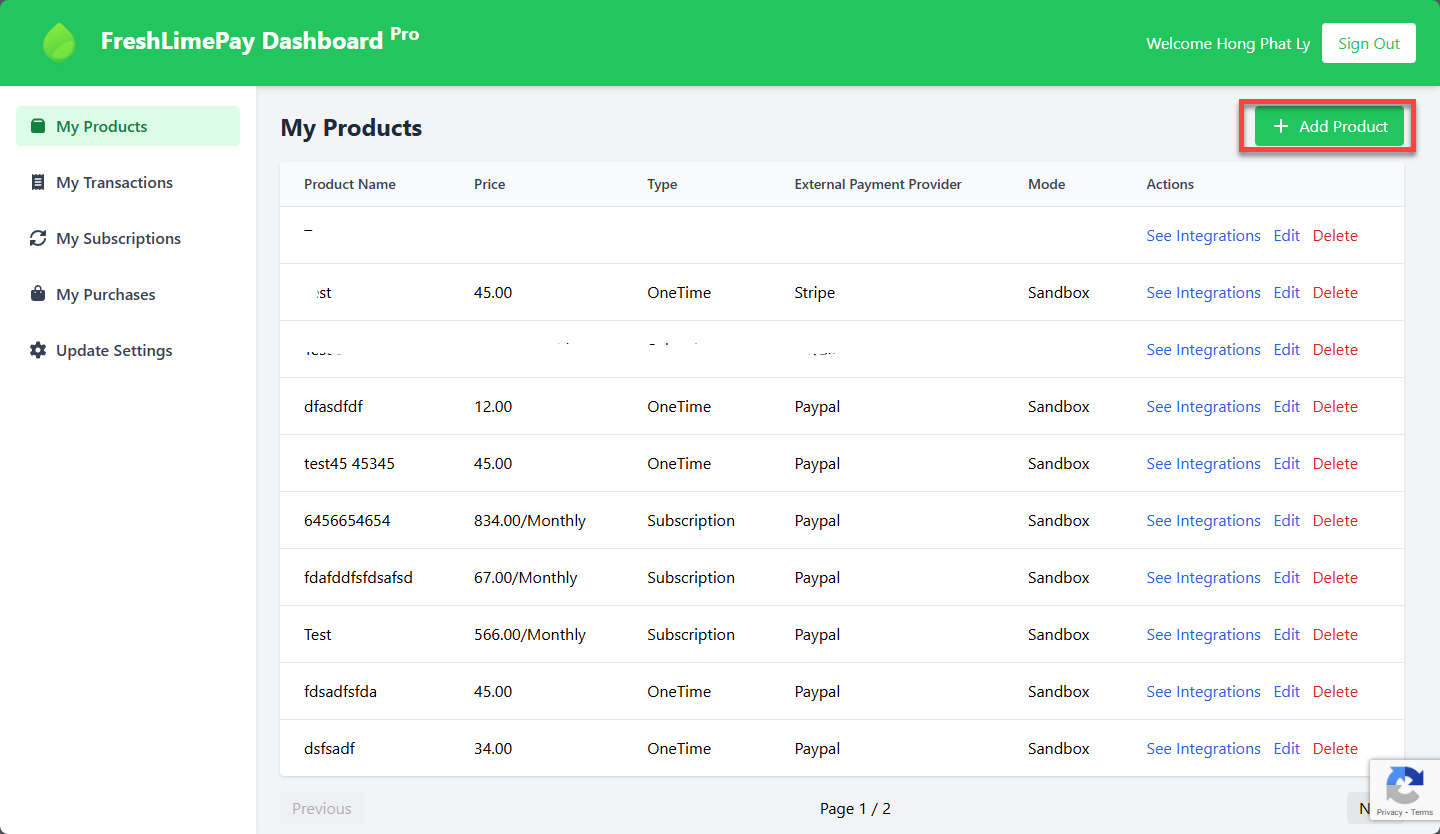 2. You will see the page like this:
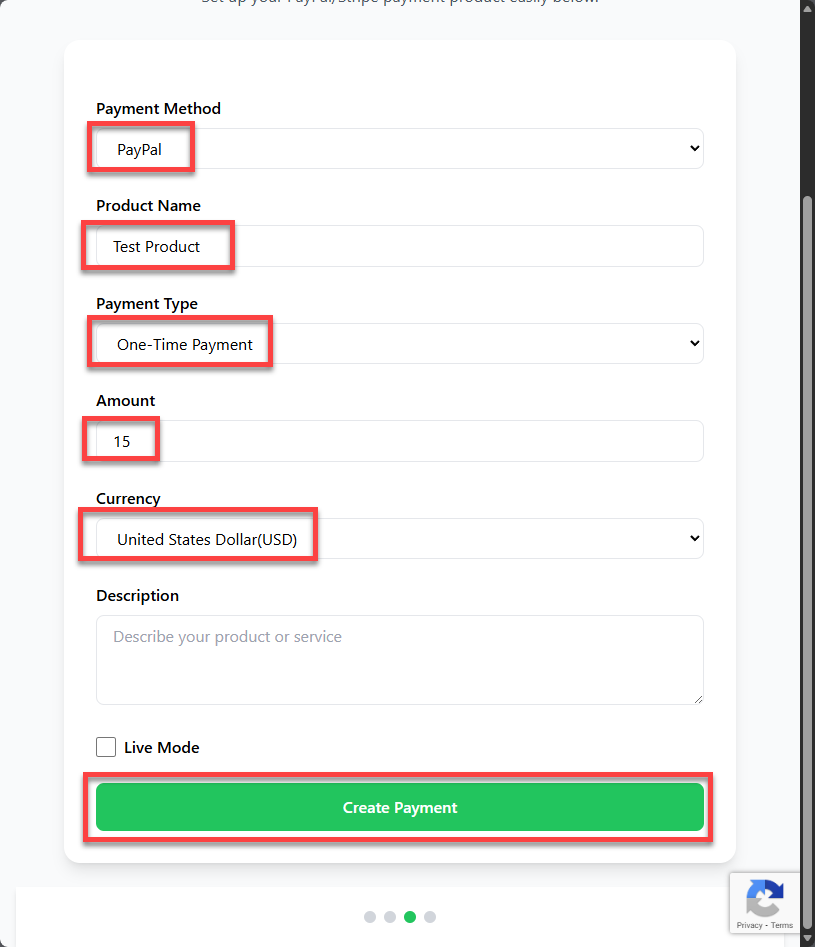 3. Completed.
1. Enter all required information like this
2. Click on "Create Payment" button to generate new payment button.
3. You will see new entry added to the dashboard page like this:
3. Completed.
1. Enter all required information like this
2. Click on "Create Payment" button to generate new payment button.
3. You will see new entry added to the dashboard page like this:
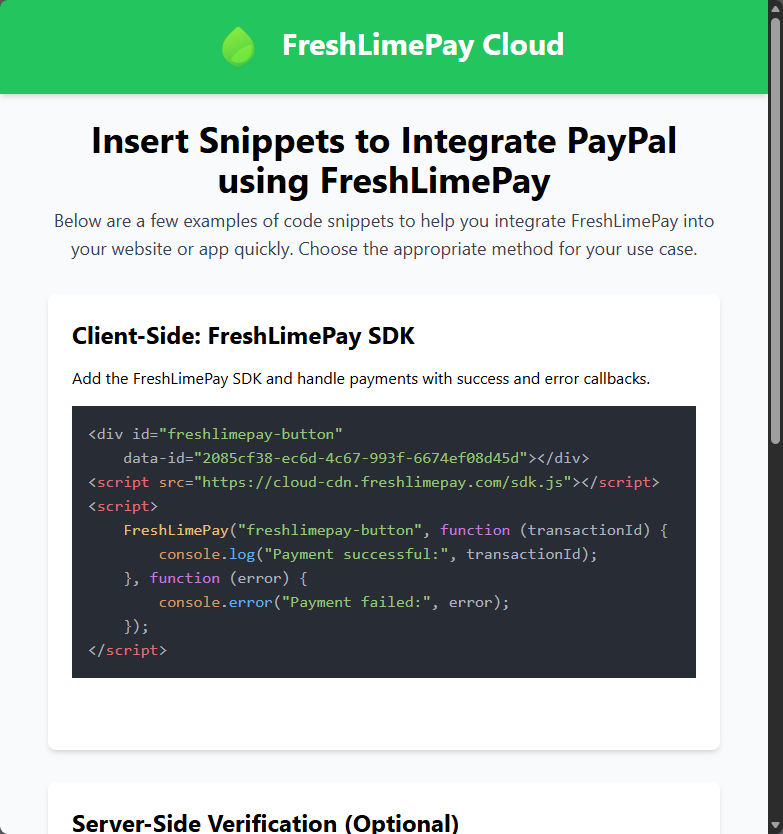
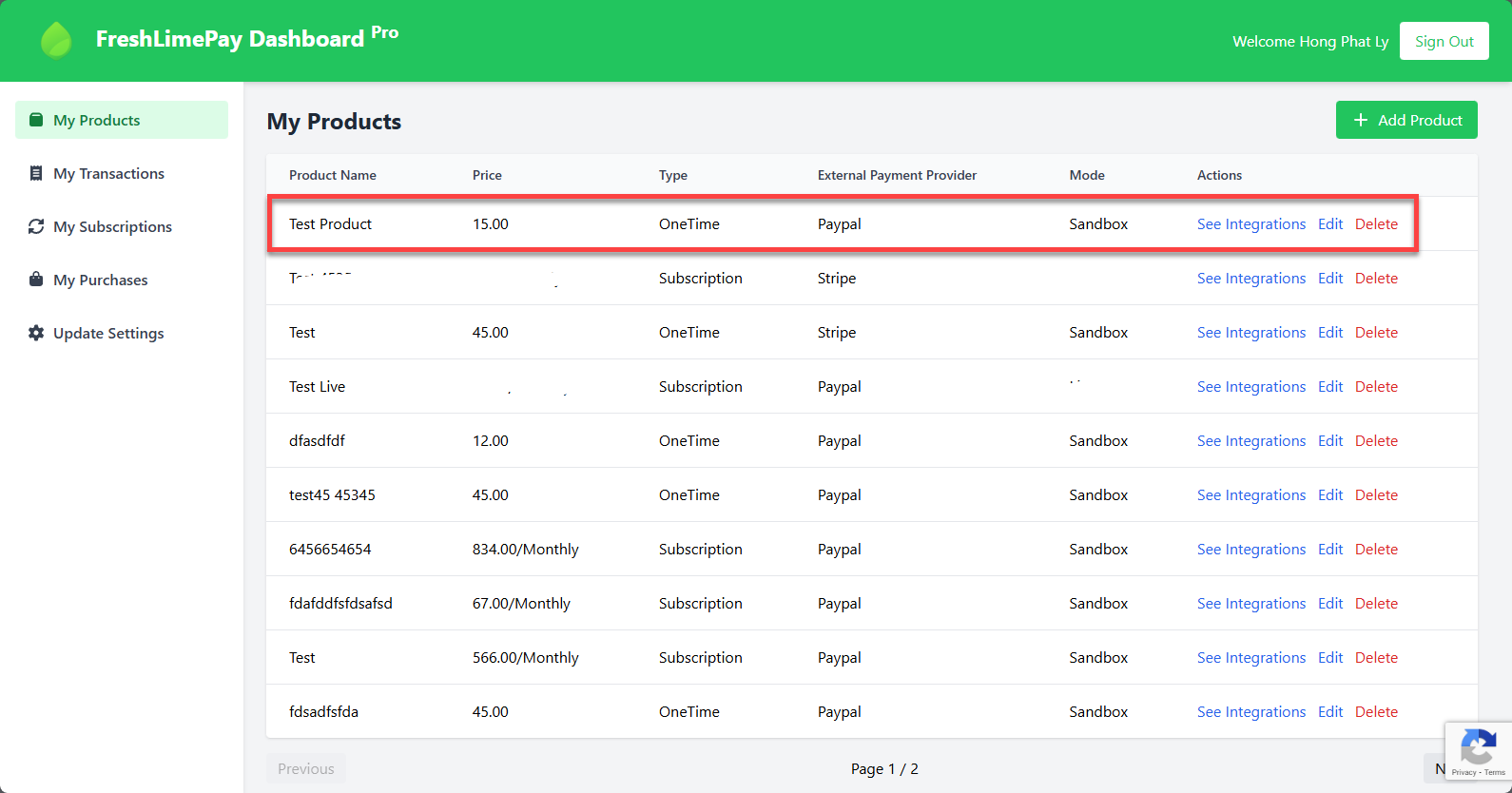 4. Click on the See Intergrations link to see snippets
 ### Step 4: Embed the snippet
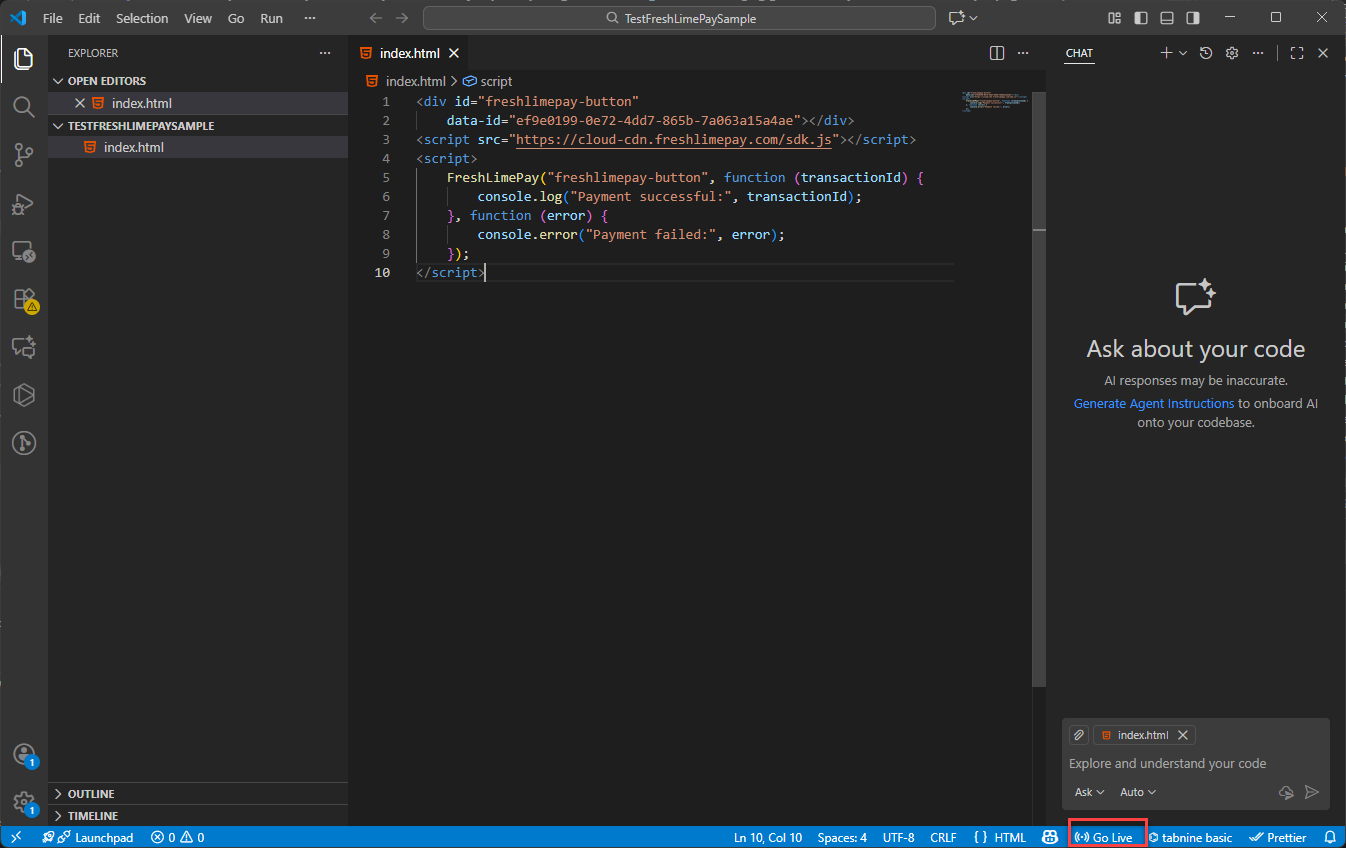
Create a simple HTML web page and paste the above snippets into it:
### Step 4: Embed the snippet
Create a simple HTML web page and paste the above snippets into it:
 ### Step 5: Test the payment
Open your page, click the button, and complete a test payment.
### Step 5: Test the payment
Open your page, click the button, and complete a test payment.
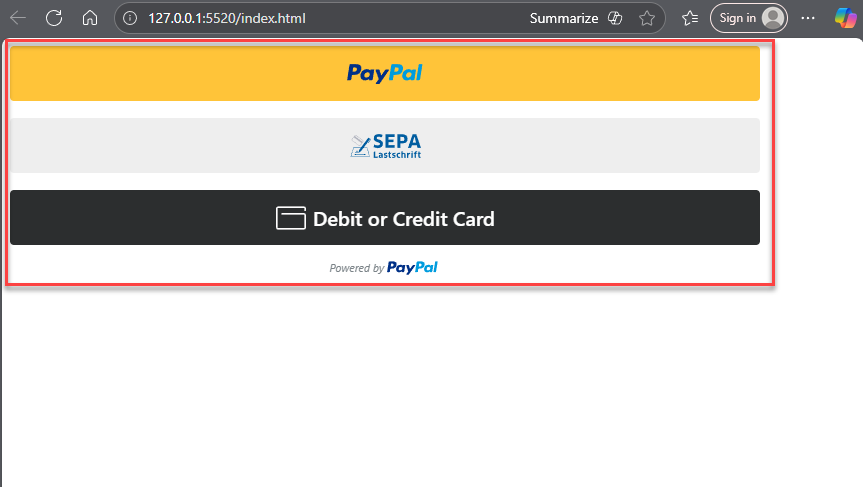 🎉 **You’re live! Funds arrive instantly in your account.**