

A PayPal Business
account is required to generate API credentials and accept payments.
1. Access the PayPal Developer Dashboard
Go to the official PayPal Developer portal to begin setting up your API credentials. Open PayPal Developer Dashboard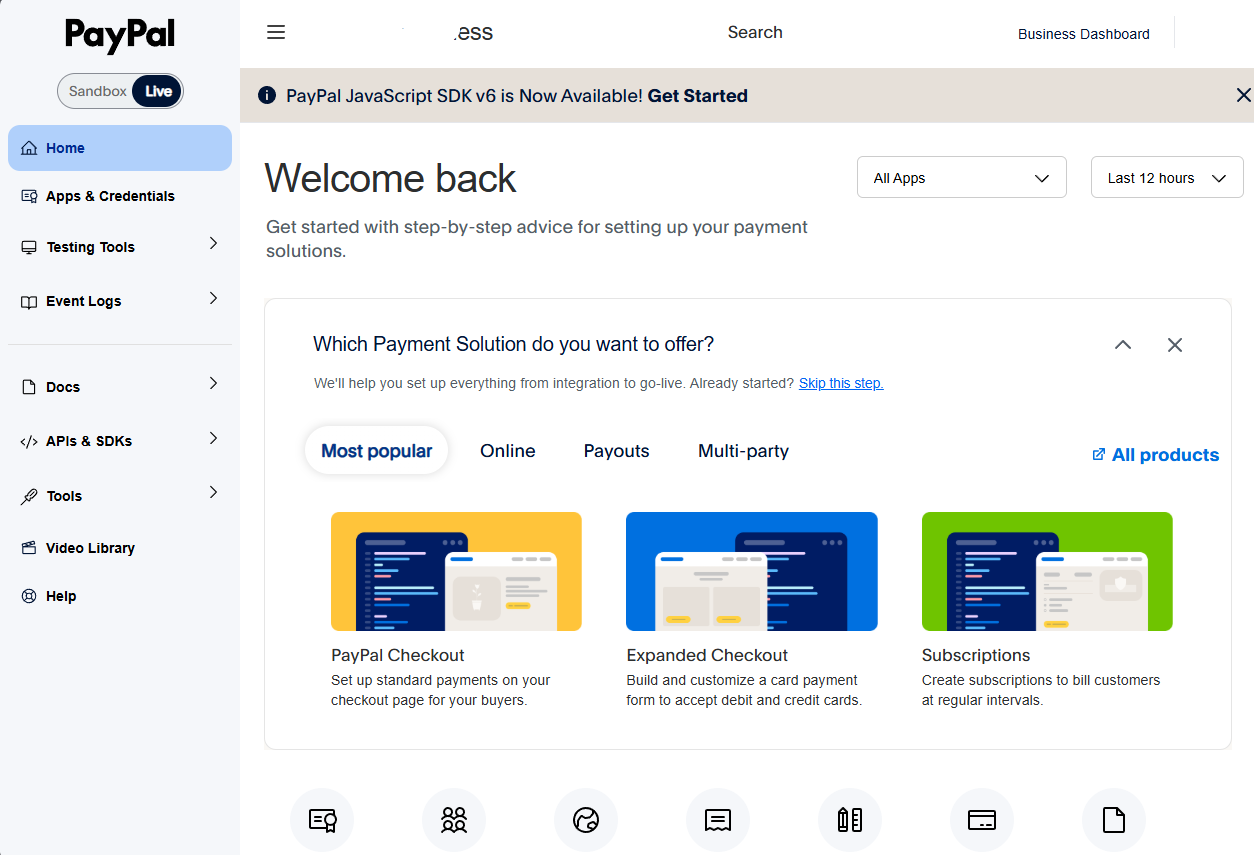
2. Choose the Correct Environment
Select the environment where you want to create your credentials:- Sandbox - for testing and development
- Live - for processing real transactions
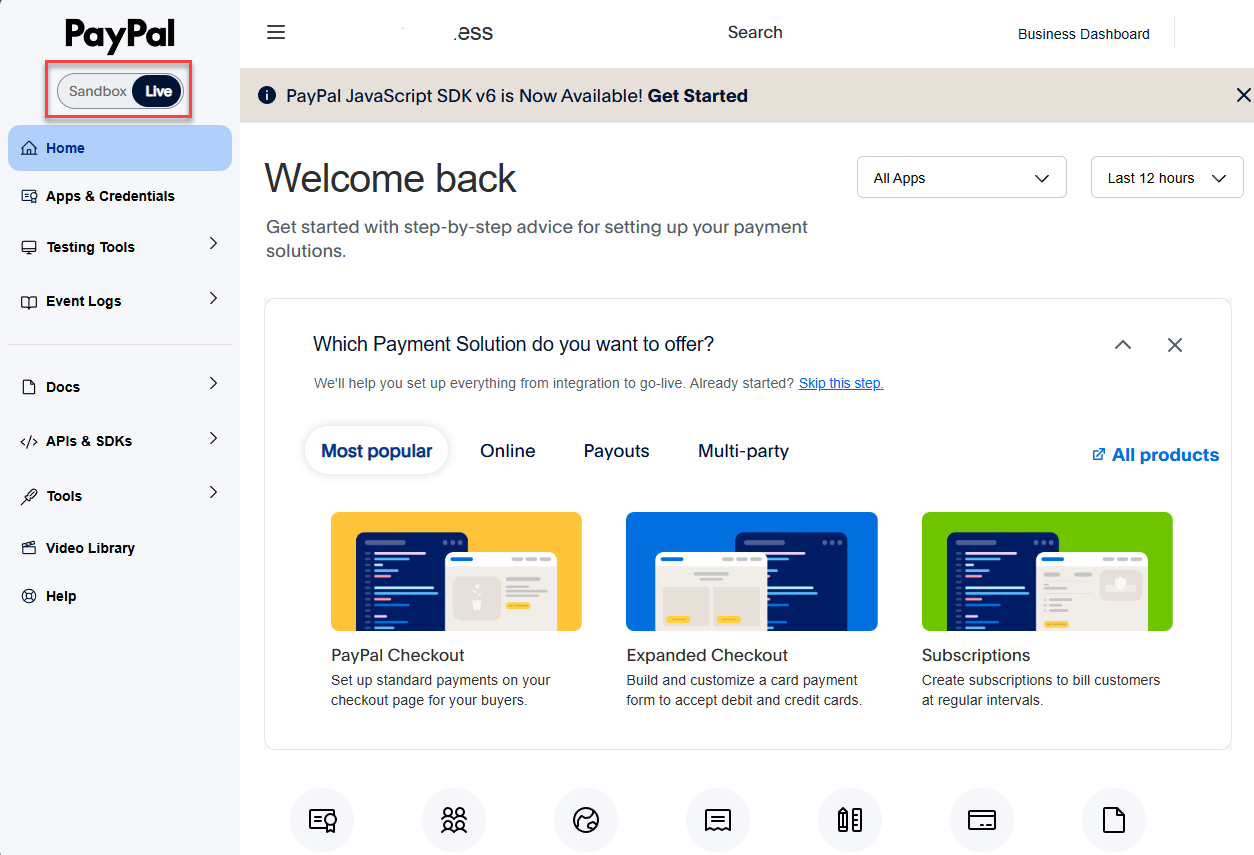
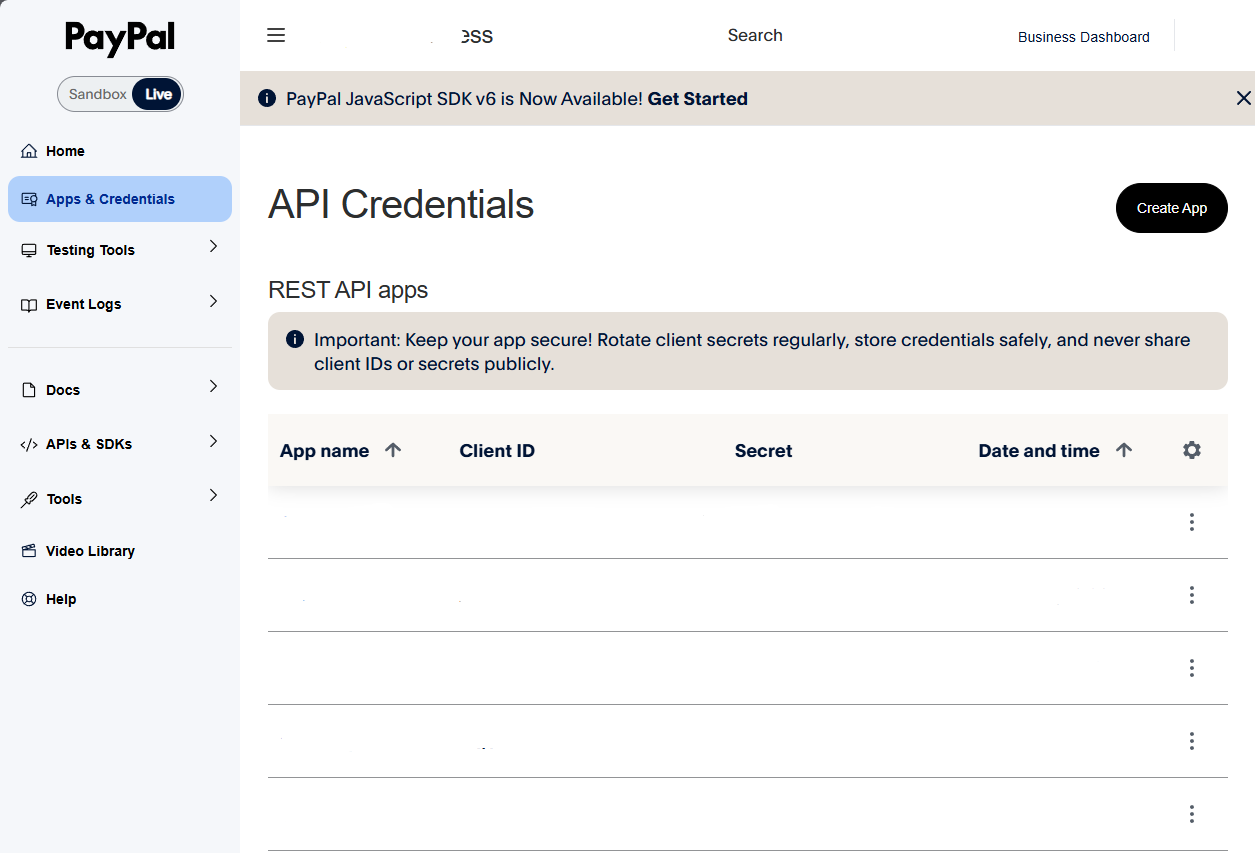
3. Create a New REST API App
-
Click Apps & Credentials\
-
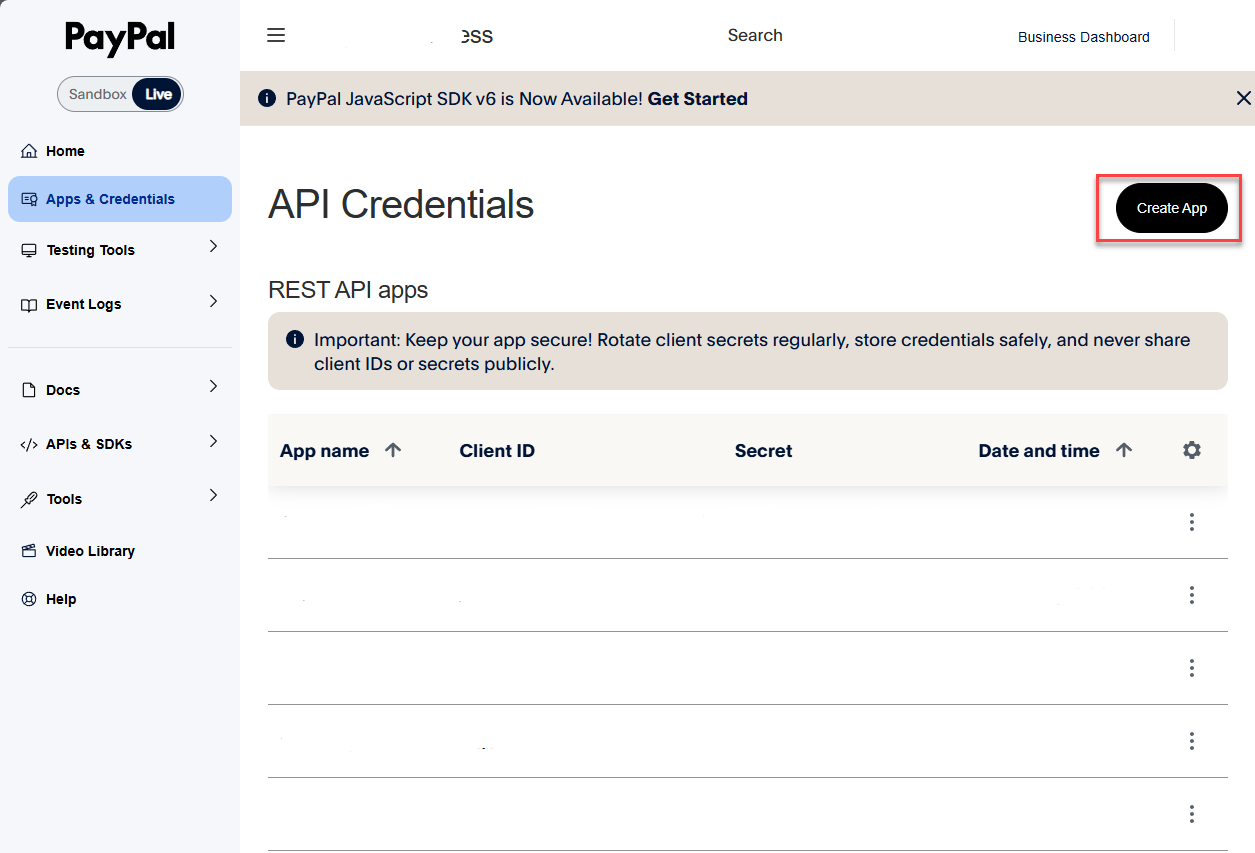
Click Create App\
-
Enter a name for your app
Example: FreshLimePay Cloud Live App\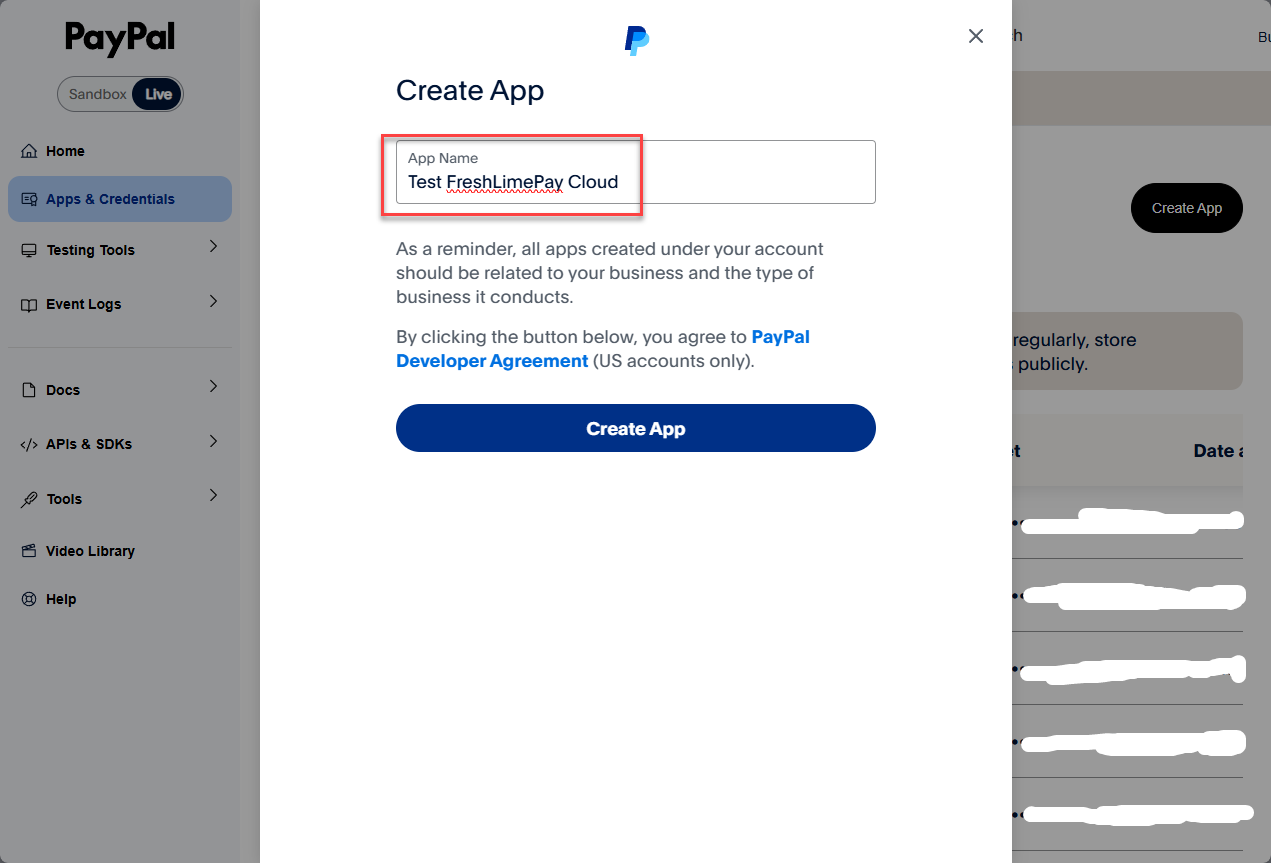
-
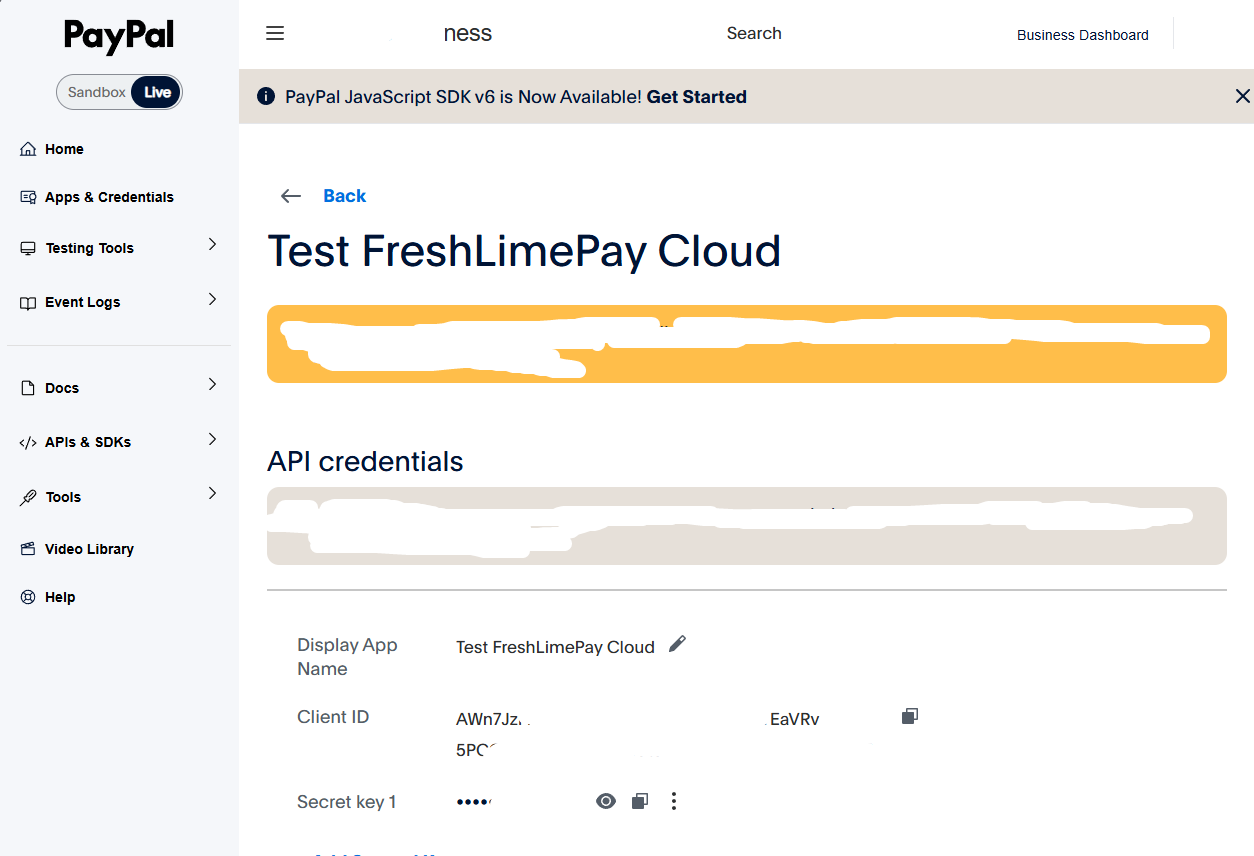
Review your app settings\
-
Enable Transaction Search
This permission allows FreshLimePay Cloud to sync your latest transaction data.\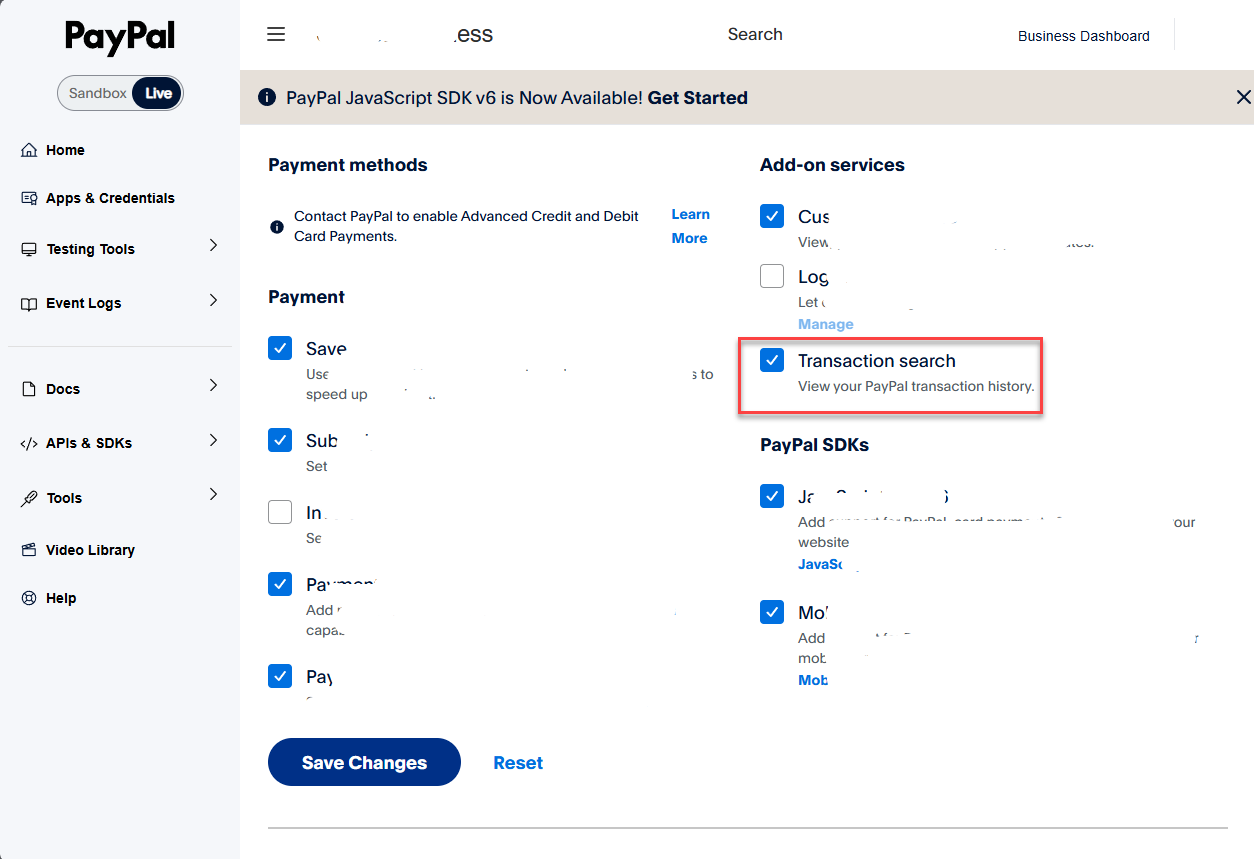
4. Copy Your Client ID and Secret
Once the app is created, your credentials will be visible immediately.- Client ID
- Secret
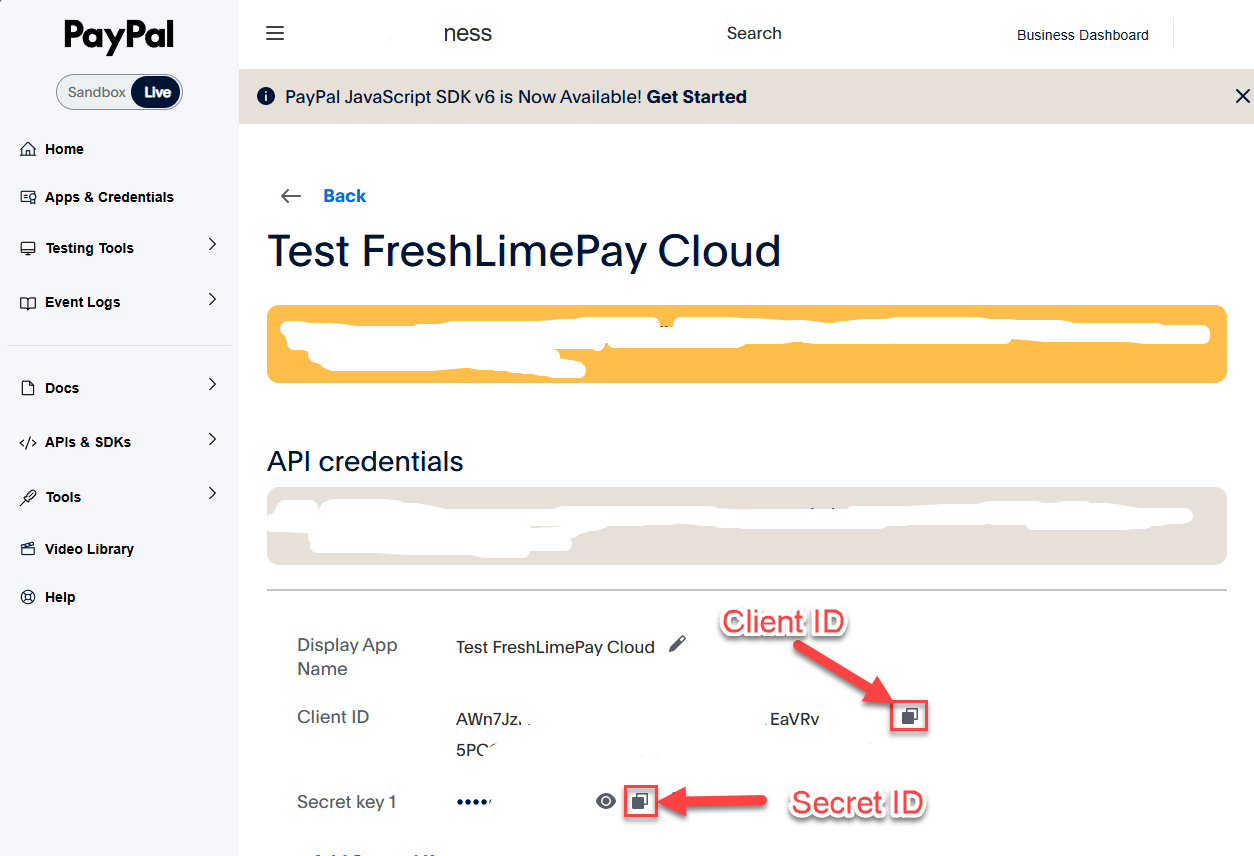
Keep your Secret private. Never expose it publicly.
5. Add Your Credentials to FreshLimePay Cloud
Sign in
Sign in to FreshLimePay Cloud using your Google account.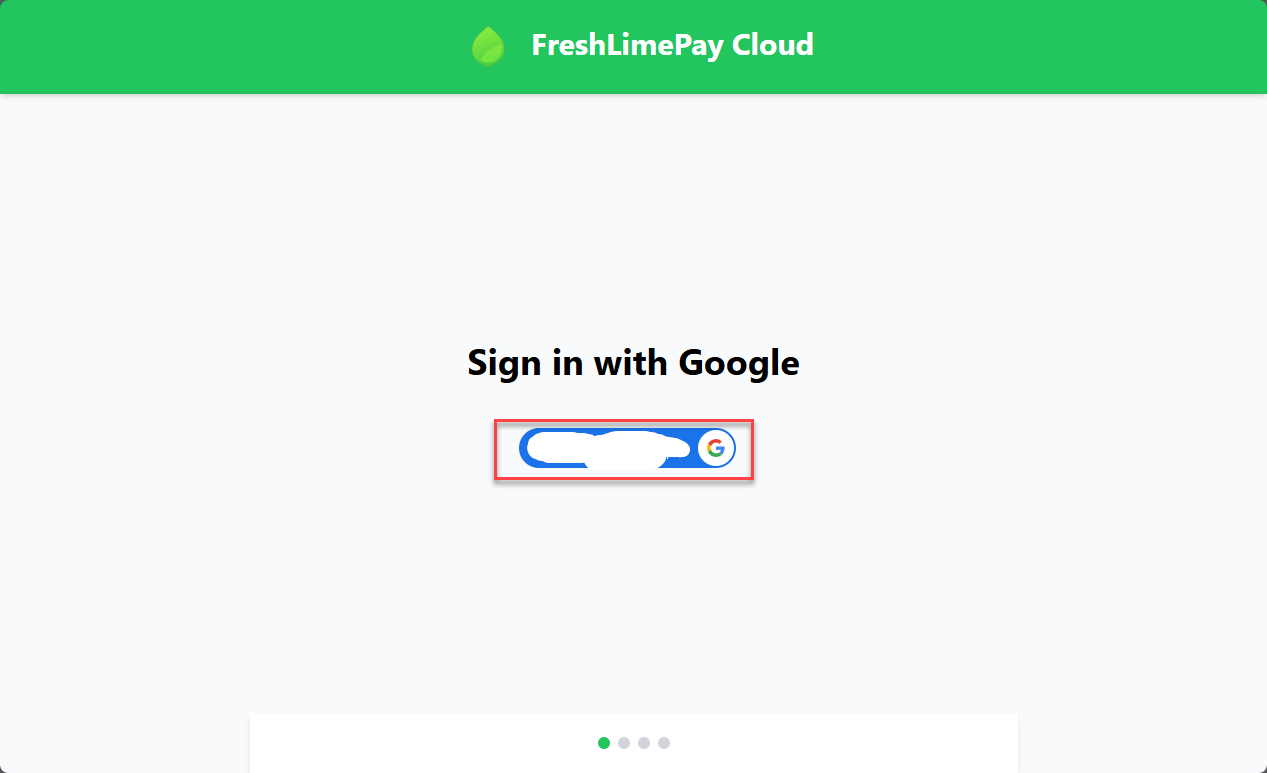
Update PayPal settings
Go to your PayPal settings page: https://cloud.freshlimepay.com/get-started/update-settings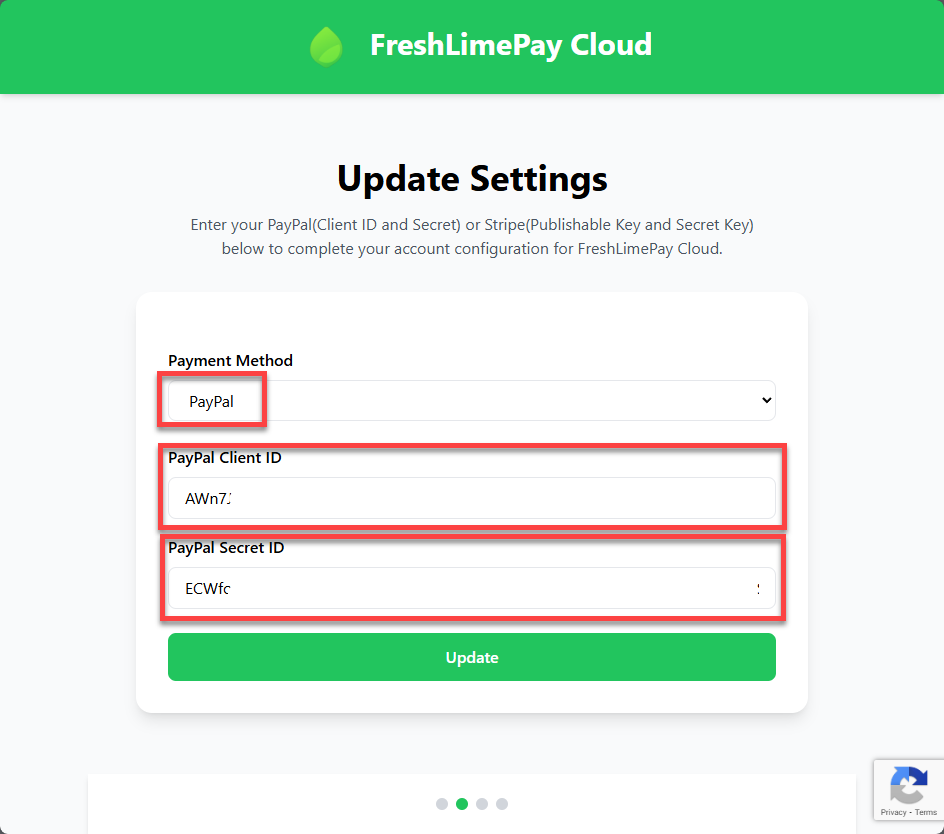 Paste your Client ID and Secret, then click Update.
Start accepting payments
After connecting:- Add products for one-time or subscription payments
- Generate checkout buttons or links
- Embed them on your site or app
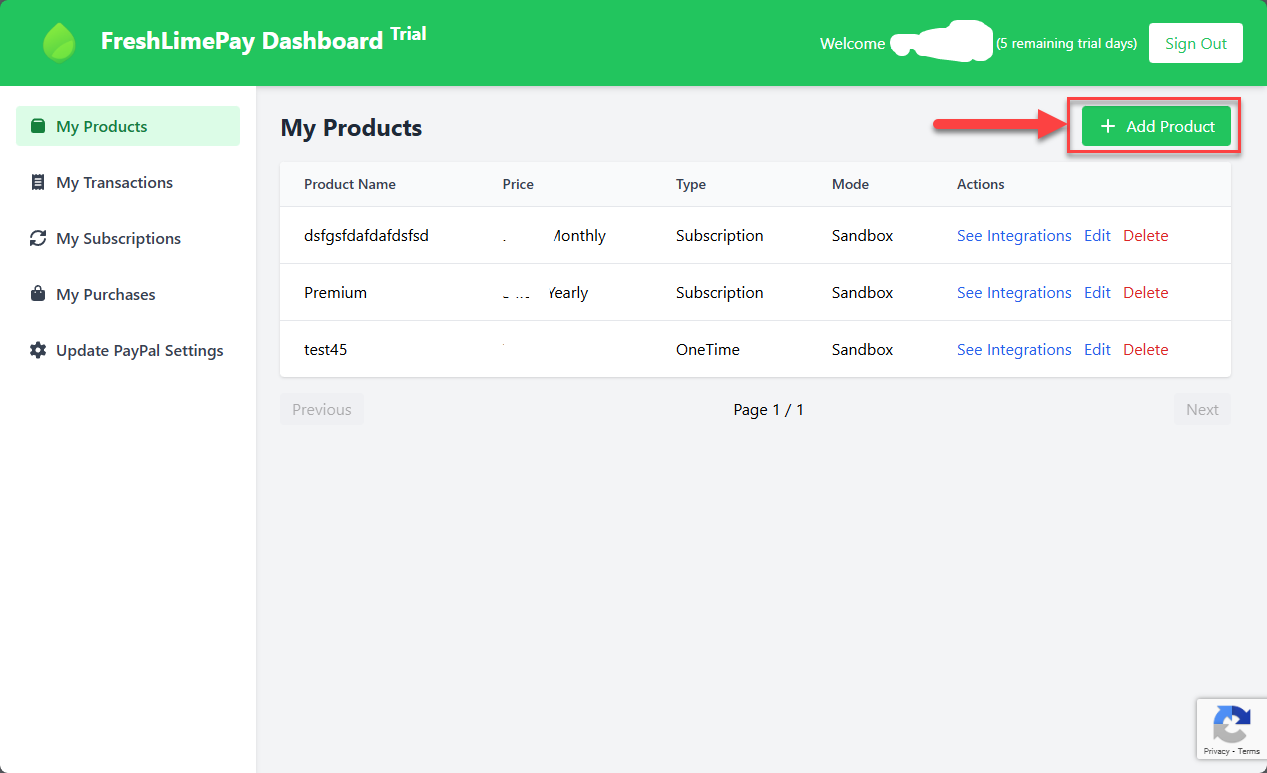 You can now accept PayPal payments directly into your account.
What’s next?
Create your first PayPal button
Set up a one-time PayPal checkout button and embed it directly on your website or app.
Create your recurring PayPal button
Create subscription-based PayPal buttons for recurring payments with secure, automatic payouts.